
Choose the computer.
Use your own cloud machine, workstation or a computer someone has authorized you to access.

VYRAY NOW / REMOTE ACCESS
Reach your own computer, help someone at theirs, or connect to a school workstation. Vyray Now opens that remote desktop on the computer in front of you.

Two places. One workspace.
HOW IT WORKS
Your applications and files live on a computer you own or are allowed to use. Vyray Now provides access to it from another computer. Cloud hosting is separate.
See what Vyray Now can doUse your own cloud machine, workstation or a computer someone has authorized you to access.
The same application handles incoming and outgoing connections.
Follow the access prompts, then work with the applications and files on the remote desktop.
First-connection guideVYRAY NOW · IN VIEW
A look inside Vyray Now: the remote desktop, your open document and the controls that keep them within reach.
Preview materials
Temporary footage and interface. Final captures will replace these examples.
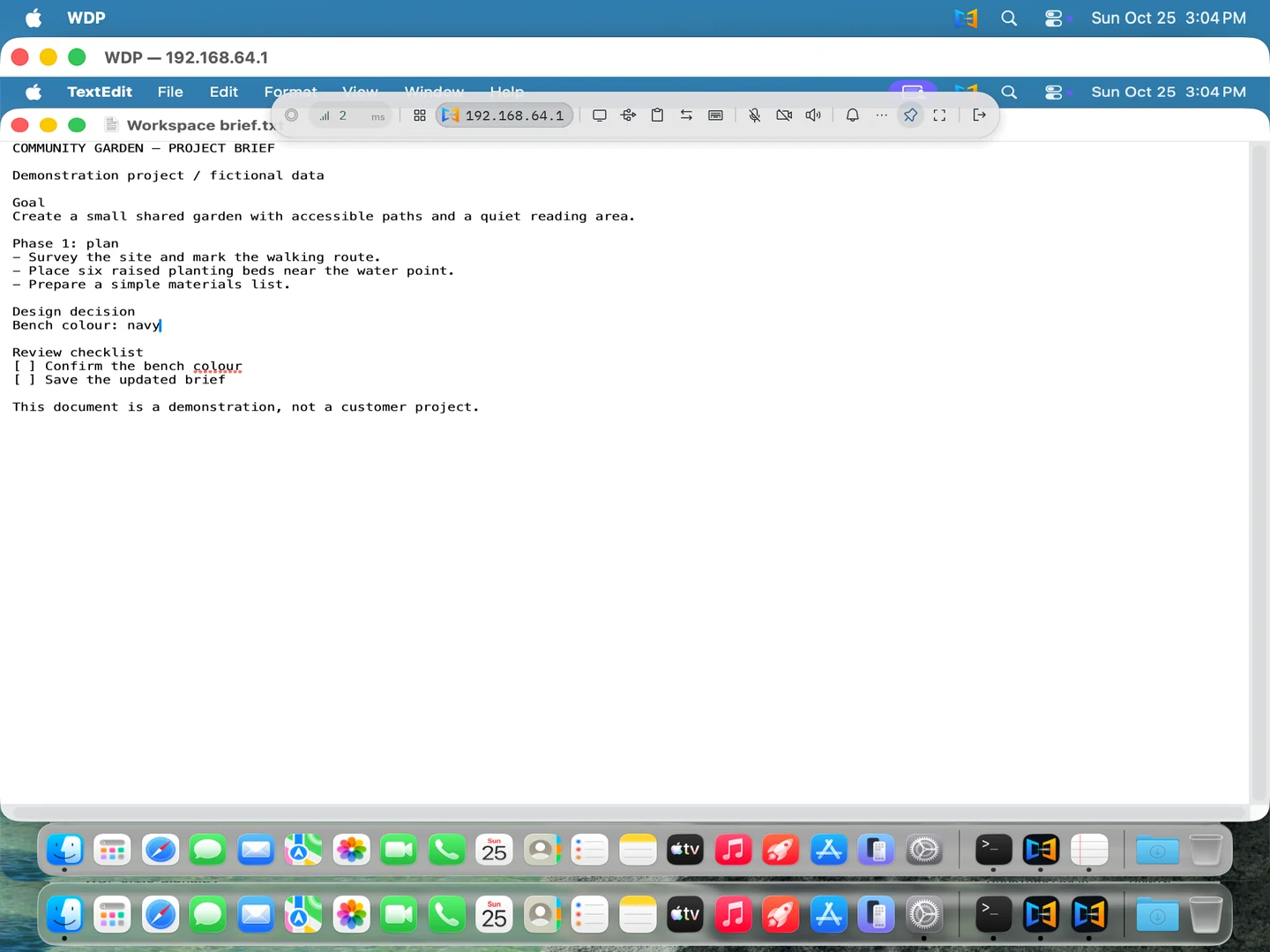
Demonstration document · Two local macOS virtual machines · No audio
The remote document is already open. The user changes the bench color from tan to navy and saves the document.
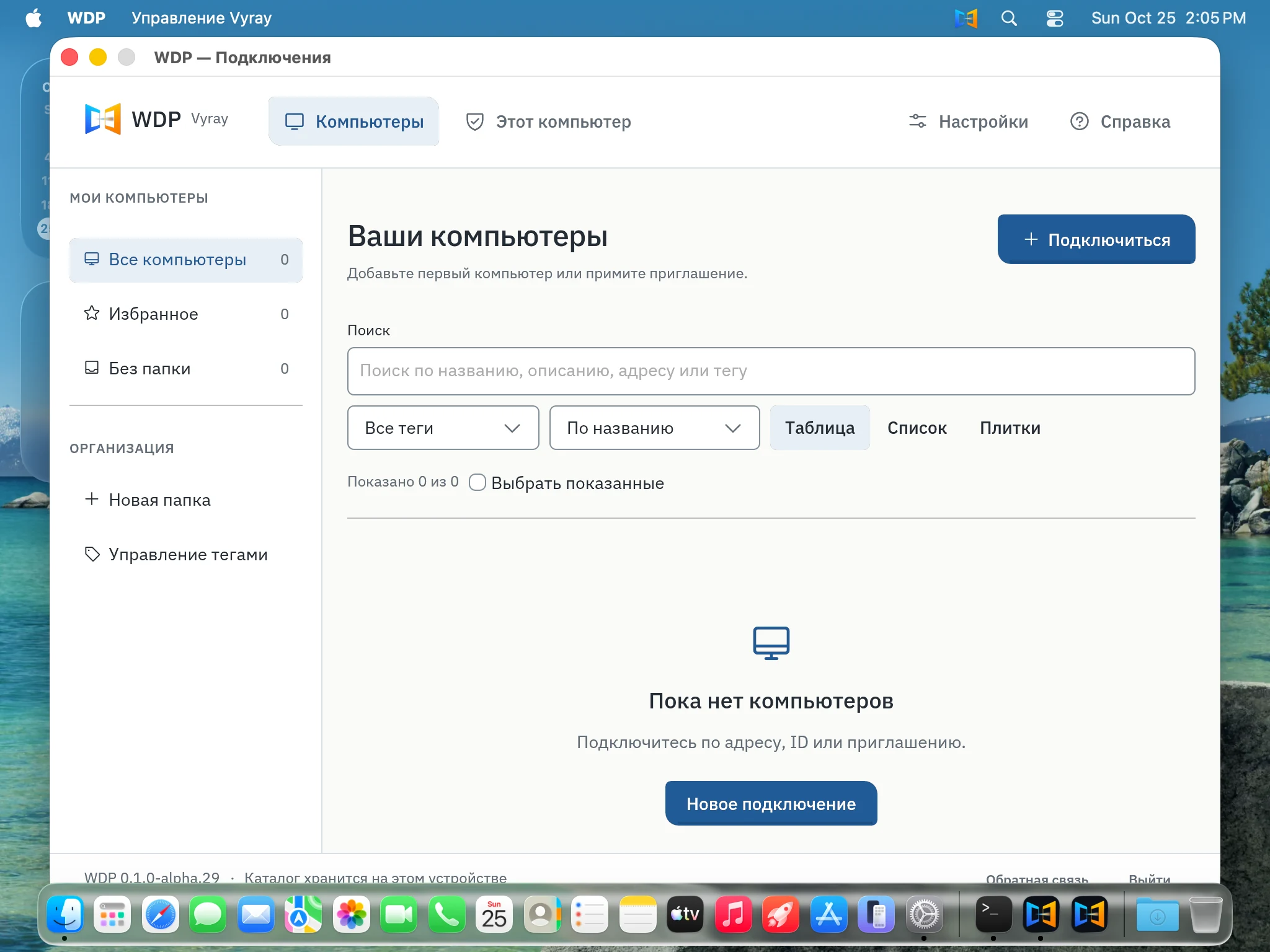 SCREENSHOTThe application windowA closer look at the app
CLOUD WORKSPACE
Your apps and projects.
A familiar workspace, somewhere new.

Choose and prepare a cloud computer or physical workstation for your work. Connect through Vyray Now from another supported computer; your applications run on the remote machine.
Explore cloud workspaceREMOTE SUPPORT
See the same screen.
Help with the next step.

Help someone at their computer with their permission. Review access together, work through the problem and disconnect when the task is done.
Explore remote supportEDUCATION
The school’s workstation.
Your own place to learn.

Reach a learning environment prepared by your school or institution. The school supplies the computer, applications and access arrangements; Vyray Now provides the remote connection.
Explore educationBEFORE YOU CONNECT
The essentials, from the computer you need to the next step.
Ask the Vyray teamNo. You provide the computer or arrange hosting separately. Vyray Now is the means of access to that computer.
Windows and Linux on x86_64, and macOS on Intel and Apple Silicon. The same application runs on both sides. Check feature and device support
Losing the connection does not itself shut down the remote computer. Work can continue while the computer, application and session stay running. Shutdown, sign-out or session limits can stop it.
Files stored on the remote computer stay there. Files you transfer or copy may also be stored locally. Access control and backups still depend on your setup.
Choose the packages for both computers, then follow the first-connection guide. Downloads View plans and pricing
YOUR NEXT CONNECTION
One app on both computers.
Your workspace within reach.


