
A machine for your work.
A cloud instance or physical workstation, configured with your operating system and applications.

VYRAY NOW / CLOUD WORKSPACE
Your apps and projects.
One familiar workspace.

Reach your own cloud machine or workstation. Keep your apps and projects together while you work from another place.
THE WORKSPACE IS YOURS
Choose a machine for the applications you use. Vyray Now connects you to its desktop; it does not supply hosting, applications or a cloud subscription.
Understand the connectionA cloud instance or physical workstation, configured with your operating system and applications.
Work with the files on that machine. Transfer files between computers when your configuration supports it.
Files, clipboard and displaysInstall Vyray Now on the remote computer and the computer you use to reach it.
VYRAY NOW · IN VIEW
Edit a document through the connection and save it on the remote computer. This recording shows that small, everyday workflow.
Preview materials
Temporary footage and interface. Final captures will replace these examples.
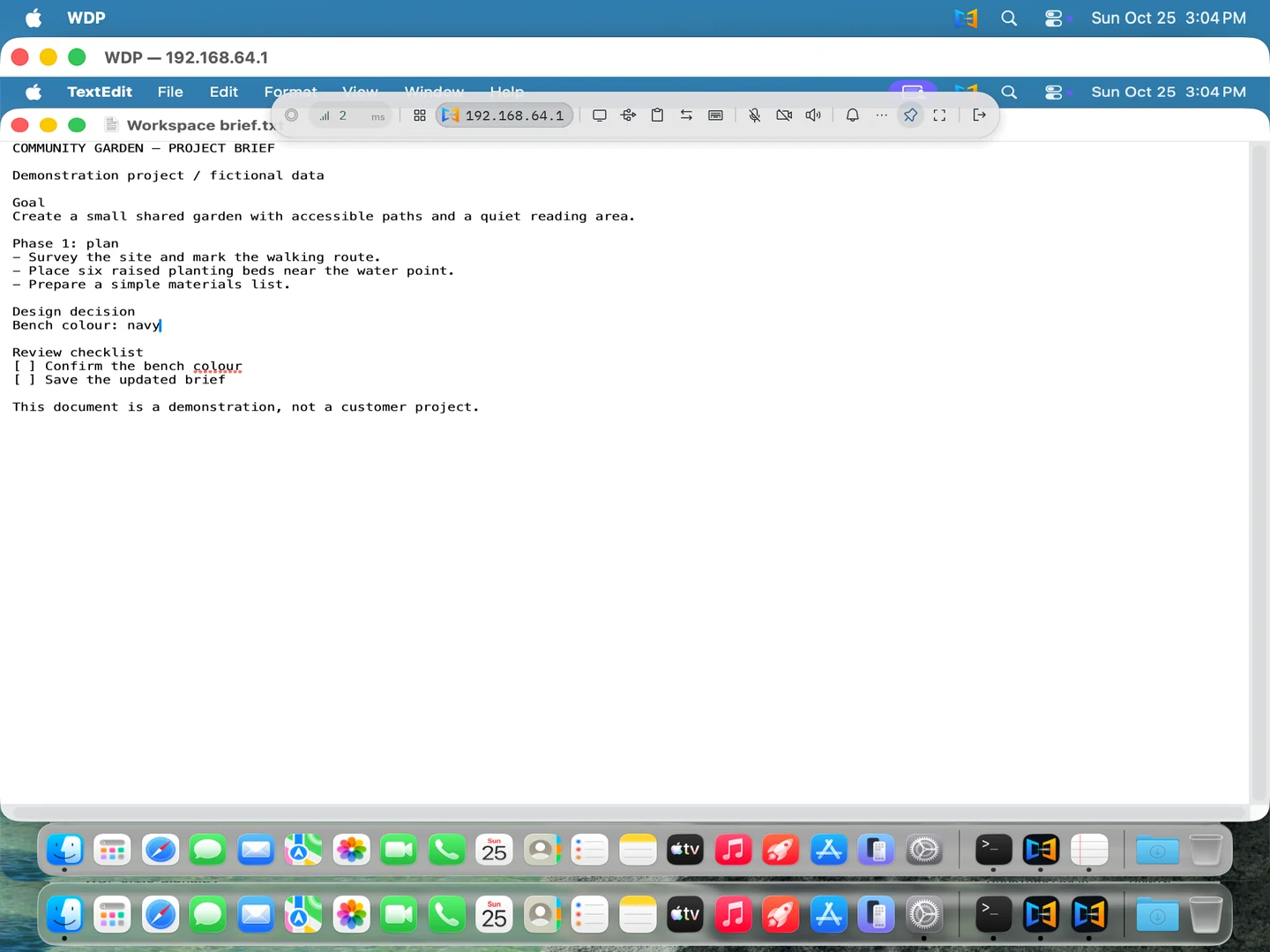
Demonstration document · Two local macOS virtual machines · No audio
The remote document is already open. The user changes the bench color from tan to navy and saves the document.
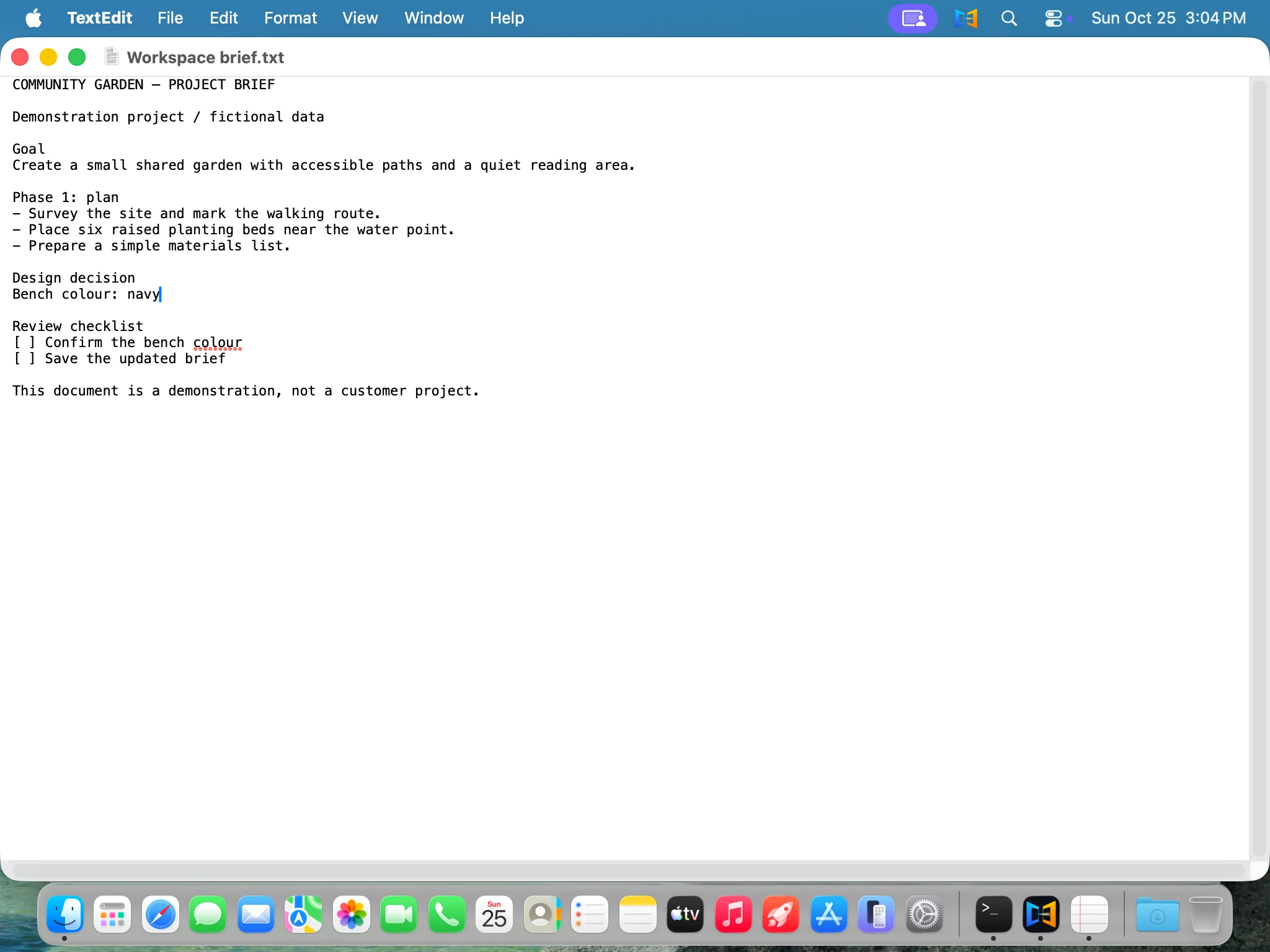 SCREENSHOTSaved on the remote computerThe result, on the other side
WHEN YOU STEP AWAY
Close your laptop.
Return to the remote workspace.

Disconnecting does not itself stop the remote computer. Tasks can continue while that computer, its applications and session remain running. Shutdown, sign-out and session limits can stop them.
Understand what keeps runningYOUR FIRST WORKSPACE
Start with a simple task on your own machine before relying on the connection for a full day’s work.
Set up your cloud machine or workstation, install the apps you need and arrange network access.
Choose the packages for each operating system. Prepare access on the remote side using the prompts in your build.
Connect to the computer, complete the access prompts and test an everyday task such as opening a document.
BEFORE YOU CONNECT
The computer you access needs to stay powered on, online and available to you. Check your particular systems, apps and devices before planning your setup.
Check compatibilityYOUR NEXT CONNECTION
Prepare your computer, choose the right packages and make your first connection.
