

For the learner.
Connect to the workstation you have permission to use and open the project or application for your course.

VYRAY NOW / EDUCATION
A prepared workstation.
A place to learn.

Reach a school workstation from another computer. Work with the applications and projects prepared for your course.
A PLACE TO LEARN
A prepared workstation can bring a familiar learning environment within reach. The institution decides which computers, applications and people are part of that setup.
Connect to the workstation you have permission to use and open the project or application for your course.
Prepare a meaningful task in the school’s applications, then check that it works through a remote session.
Arrange accounts, software licences, machine availability and who may access each workstation.
START WITH ONE WORKSTATION
Try the real course workload on one prepared machine before deciding how to make it available more widely.
Explore the productInstall and license the course application on the institution’s workstation. Use a sample project with no private student data.
Install Vyray Now on both sides and arrange authorized access. Check the learner’s operating system and network.
Open, edit and save the project. Test any files, sound, camera or peripherals the lesson actually needs.
VYRAY NOW · IN VIEW
Open a prepared exercise on the remote desktop, make a change and save the result. A simple example for planning your first trial.
Preview materials
Temporary footage and interface. Final captures will replace these examples.
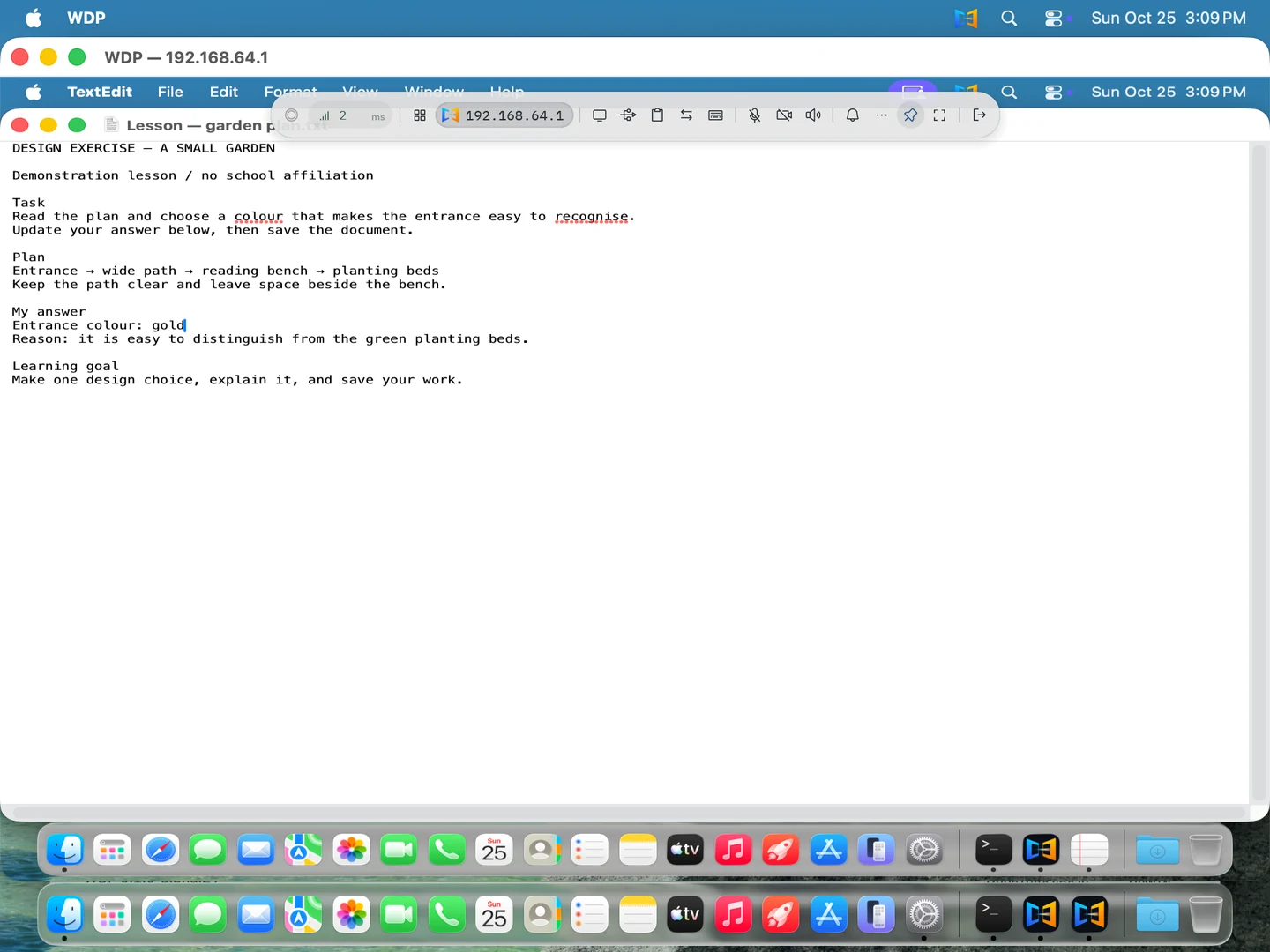
Demonstration document · Two local macOS virtual machines · No audio
The remote document is already open. The user changes the entrance color from blue to gold and saves the exercise.
WHO PROVIDES WHAT
Vyray Now provides access to a remote desktop. The educational environment remains the institution’s responsibility.
The application for connecting to and receiving connections on a computer.
See the remote-access featuresWorkstations, accounts, applications, licences, access arrangements and the teaching activity.
This workflow does not imply an included learning-management system, classroom scheduling or fleet-management service.
BEFORE YOU CONNECT
The computer you access needs to stay powered on, online and available to you. Check your particular systems, apps and devices before planning your setup.
Check compatibilityYOUR NEXT CONNECTION
Prepare a workstation and a sample activity. Start with a connection, then evaluate the complete task.